

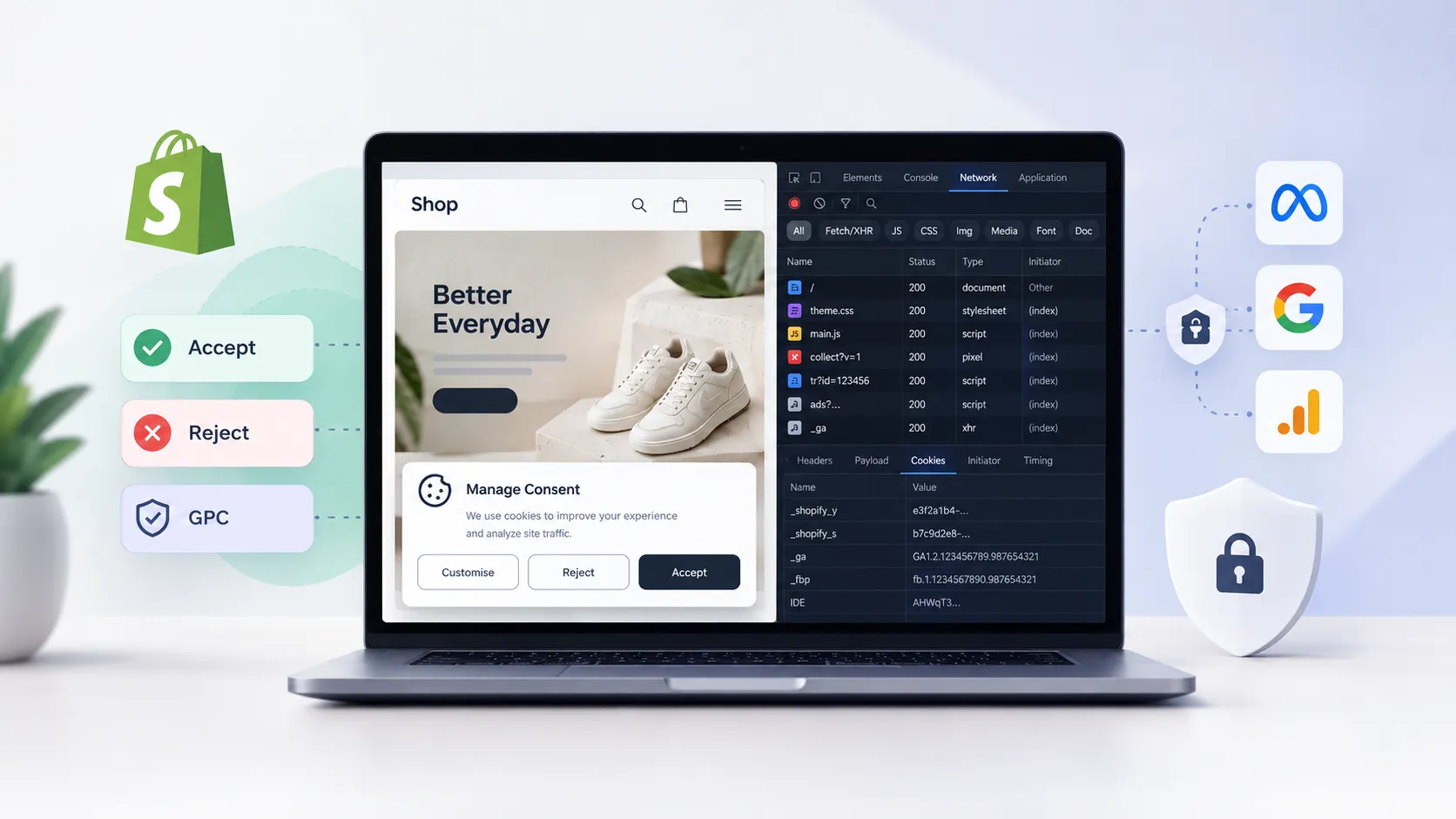
A Shopify storefront can look completely normal while dozens of things happen in the browser behind the scenes — pixels firing before consent is given, GPC signals quietly ignored, and app-injected scripts phoning home regardless of what the cookie banner says. After auditing consent behavior on a handful of client stores recently, I can tell you most of them were non-compliant in ways nobody had noticed.
Here’s how I actually test for it.
1. Why this matters more than you think
The standard Shopify store ships with Shopify Customer Events, a handful of app pixels, maybe Meta and Google integrations, a chat widget, and a consent management platform (CMP) slapped on top. The CMP is supposed to gate all of that. In practice, it often doesn’t — because the CMP fires late, because an app injects its script directly into theme.liquid and bypasses the pixel sandbox entirely, or because the Customer Events configuration doesn’t correctly map permissions to pixel triggers.
This isn’t just a GDPR checkbox issue. Pixels firing before consent also hurt performance. Every un-gated third-party script is a render-blocking or main-thread-blocking resource that shows up in your PageSpeed Insights report and drags your LCP. Fixing consent behavior is often the same work as fixing your Shopify speed optimization.
2. Set up a clean test environment
Don’t test consent behavior in a browser profile you use for development. You’ll have stale cookies, cached consent decisions, and extension noise that completely invalidates what you’re seeing. The setup I use:
- A dedicated Chrome profile with no extensions except the ones needed for testing
- Firefox for GPC testing — it ships with GPC enabled by default in private browsing, which saves you from installing anything
- DevTools open before you land on any page — the Network tab needs to be recording from the first byte
- A short custom filter in the Network tab:
cookiefor cookie requests, and the names of your known pixel domains (connect.facebook.net,googletagmanager.com,analytics, etc.)
Also: clear all site data between each test run. DevTools → Application → Storage → Clear site data. If you skip this step, a previous accept decision will carry over and your “reject” test will be meaningless.
3. Testing the accept state
Load the store in a clean profile, accept consent when the banner appears, and immediately check two things in the Network tab:
- Which domains are called, and when? Everything you’d expect — Meta pixel, GA4, your review widget — should appear after the consent event fires. If they appear before you’ve clicked accept, you have a pre-consent firing problem regardless of what the accept state does.
- What cookies are set? Open Application → Cookies. First-party Shopify cookies (
_shopify_y,_shopify_s) are expected. Third-party tracking cookies should only appear after a clean accept.
The accept state is usually the least broken of the three — the issue is that it’s the only state most developers ever test.
4. Testing the reject state
Clear site data, reload, and this time reject or dismiss the consent banner. Now look for:
- Pixel requests that fire anyway. Meta and Google pixels should not appear in the Network tab at all. If they do, your CMP is not correctly gating Shopify Customer Events — or an app is injecting scripts outside the pixel sandbox.
- App-injected scripts in
theme.liquid. This is the most common failure mode I see. An app installs its tracking snippet directly into the theme rather than through the Customer Events pixel API. The CMP has no knowledge of it, so it fires unconditionally. Search your theme for<script>tags that reference third-party analytics domains — every one of those is a bypass risk. - Cookies set before or during page load. In reject state, you should see a minimal cookie footprint. If you see a fresh
_fbpor_gacookie, something is misfiring.
5. Testing the GPC signal
GPC (Global Privacy Control) is an HTTP header —Sec-GPC: 1 — that browsers send to signal opt-out of data sale or sharing. California’s CPRA requires businesses to honor it. Shopify’s native consent solution is supposed to recognize GPC, but your CMP or pixel setup can override that.
To test it:
- In Firefox private browsing, GPC is already enabled. Load the store without interacting with any consent banner.
- In Chrome, install the GPC extension or enable it via a flag in a test profile.
- Check the request headers in the Network tab — confirm
Sec-GPC: 1is being sent. Then check whether tracking pixels still fire. If they do, your store is ignoring the GPC signal entirely.
Most Shopify stores I’ve looked at fail this test silently. The consent banner never even shows in Firefox private browsing because the CMP detects no prior decision — but GPC-aware CMPs should be suppressing non-essential scripts automatically, before any banner interaction.
6. What I’d actually do on a client store
The audit above is a diagnostic, not a fix. Here’s the triage order I actually follow when a store fails any of the three states:
- Migrate all tracking to Shopify Customer Events. Any pixel that’s injected via
theme.liquidor an app’s own script tag needs to be moved into the Customer Events pixel sandbox. This is the only way a CMP can reliably gate it. It’s also better for performance — Customer Events defers pixel execution properly. - Audit installed apps for rogue scripts. I run a quick grep across the theme files for known tracking domains. Anything that shows up outside of Customer Events is a candidate for removal or refactoring. This step also tends to surface dead apps — scripts from apps that were uninstalled but whose code was never cleaned up.
- Pick a CMP that has native Shopify Customer Events integration. Not all CMPs are equal here. Some work at the script-injection layer and miss Customer Events entirely. Ask the vendor directly: “Does your integration honor the Customer Events permission API?” If they don’t know what that is, that’s your answer.
- Retest after every app update. Apps update silently. I’ve seen a consent-compliant store break because an app pushed an update that moved its pixel outside the sandbox. Build the three-state test into your QA checklist, not just your initial setup.
One thing worth naming explicitly: cleaning up rogue scripts is often the single biggest performance win available on a Shopify store. When I do a Shopify speed audit, consent compliance and script hygiene are on the same checklist as LCP and INP — because they’re the same problem from different angles. A store that honors GPC and reject states correctly is also a store that isn’t loading 400 KB of third-party JavaScript unconditionally on every pageview.
If you’re maintaining a custom theme and want a second set of eyes on what’s actually firing in your store, the Shopify theme customization service is where I do that kind of deep-dive work. Or if you want to talk through a specific compliance or performance problem first, book a call — 15 minutes is usually enough to figure out where to start.