

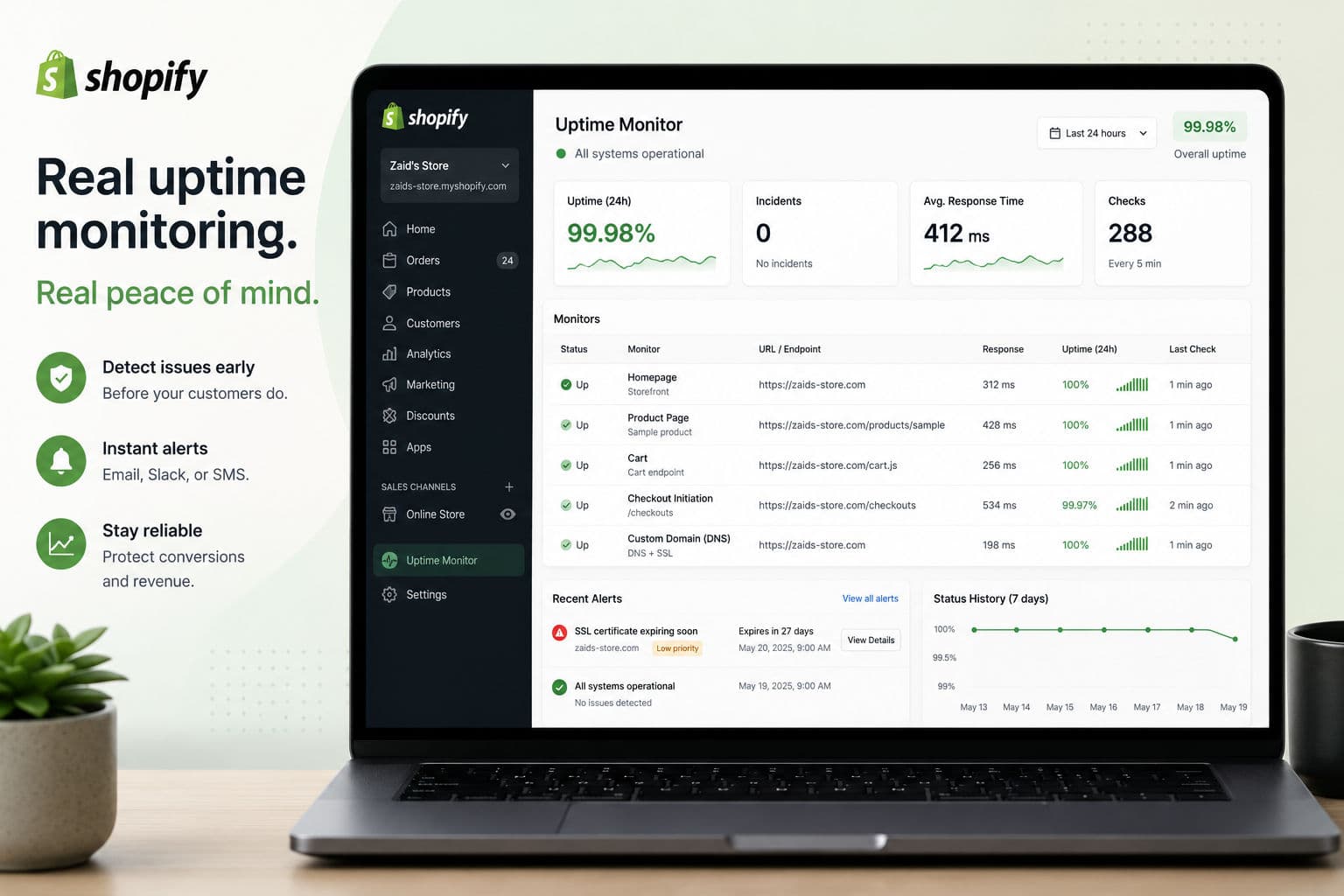
Shopify’s infrastructure is genuinely solid—I’ve never had a client store go down because of a Shopify server failure. But I have had stores go dark because of a misconfigured custom domain, a theme section throwing a fatal Liquid error after an app update, and a checkout integration silently returning 500s for two hours before anyone noticed. Shopify’s status page at status.shopify.com covers their platform—it tells you nothing about your store specifically.
Here’s what actually needs monitoring, and how I set it up on client stores.
1. What Shopify monitors for you
Shopify runs a globally distributed platform and publishes incident reports for things like:
- Core checkout availability
- Admin and API response times
- Payments processing
- Storefront rendering on their CDN
If Shopify’s servers are the problem, you’ll see it on their status page before you see it in your own monitoring. You don’t need to duplicate this. What you do need to monitor is everything that sits on top of their infrastructure—your layer.
2. What Shopify won’t catch
These are the failure modes I’ve actually encountered on client stores:
- Custom domain misconfiguration. A DNS record gets changed during a migration or registrar renewal, and suddenly the store resolves for some ISPs but not others. Shopify doesn’t monitor your DNS—that’s entirely your problem.
- SSL certificate expiry on a custom domain. Shopify auto-renews certificates for stores using their managed domains, but I’ve seen the auto-renewal fail when a CNAME was slightly misconfigured. Chrome shows a big red warning; conversions die instantly.
- Theme-level Liquid errors. An app update changes an expected snippet, your theme renders a blank section or throws a 500 on product pages. Shopify’s CDN returns a 200 with broken HTML—platform status looks green the whole time.
- Third-party checkout integrations. Buy-now-pay-later widgets, custom checkout extensions, and headless storefronts all have their own uptime characteristics. A failed BNPL script can silently disable the payment button for a subset of users.
- Storefront API endpoints. If you’re running any headless or hybrid setup that hits the Storefront API directly, those endpoints can time out or return stale data without the platform showing an incident.
3. The endpoints worth watching
You don’t need to monitor every URL. Monitor the ones where a failure costs money:
- Homepage — HTTP 200 check, plus a keyword check for something that appears when the page renders correctly (e.g., your store name in the
<title>tag) - A product page — specifically one with a complex theme section if you have them
- Cart page or
/cart.js— a failed cart endpoint is a silent conversion killer - Checkout initiation — at minimum, check that
/checkoutsreturns something valid - Custom domain root — separate from the Shopify-hosted URL to catch DNS-level failures
For stores with a headless layer or custom app integrations, I also add monitors for any webhook receiver endpoints and the Storefront API token endpoint.
4. Tooling: what I actually use
There’s no shortage of uptime monitoring tools. The ones I’ve used in production on Shopify stores:
- UptimeRobot — free tier covers 50 monitors with 5-minute intervals. More than enough for a standard Shopify store. I use this on every client store by default.
- Better Uptime — cleaner incident timeline, better on-call routing. Worth the cost for stores doing serious revenue.
- Vigilmon — newer entrant, Shopify-focused. The pitch is that it understands Shopify-specific failure modes rather than just pinging URLs. Reasonable option if you want something purpose-built.
Honestly, for most stores the tool matters less than having something. Five-minute HTTP checks on your homepage, product page, and cart, with a Slack or email alert, will catch 90% of outages before a customer complains.
5. Avoiding alert fatigue
The failure mode I see most often with monitoring setups isn’t “no monitoring”—it’s “too many low-signal alerts that everyone learns to ignore.” A few rules I follow:
- Require two consecutive failures before alerting. Transient network errors will fire single-check alerts constantly. Two consecutive failures almost always means something real is wrong.
- Use keyword checks, not just HTTP status codes. A Liquid error that renders broken HTML returns a 200. Check for a keyword that only appears on a healthy page render.
- Separate “page on fire” alerts from “heads up” alerts. SSL expiry warnings and slow response times belong in a Slack channel someone checks weekly. Checkout failures belong in a phone notification.
- Review your monitor list quarterly. Stores change. An endpoint you were monitoring six months ago might no longer exist—and a false-positive alert on a deleted page will train your team to dismiss alerts.
6. What I’d actually set up on a client store
Here’s my honest take after setting this up across a lot of Shopify stores: the stores that get hurt by downtime are almost never the ones that are down because Shopify failed. They’re the ones where a well-meaning developer pushed a theme change on a Friday afternoon, the Liquid template threw an error on the collection page, and nobody noticed until Monday.
My actual setup for a mid-size client store:
- UptimeRobot on the free tier, four monitors: homepage, a collection page,
/cart.js, and the custom domain root - Keyword check on the homepage for something in the
<title>tag—takes 30 seconds to configure and catches broken Liquid renders that still return 200s - SSL expiry alert set to 30 days—gives enough lead time to fix a DNS misconfiguration before the certificate lapses
- Alerts go to a dedicated Slack channel and the client’s email; phone alerts only for the checkout endpoint
For stores running a headless frontend or heavy app integrations, I layer in Better Uptime for the on-call routing and add monitors for each integration endpoint individually. The cost is negligible compared to an hour of missed checkout revenue.
One thing I always pair this with: if a monitor fires, you need to be able to roll back a theme change fast. That means proper theme versioning—keeping a published backup theme in the Shopify admin and using version-controlled theme development so you know exactly what changed and when. Monitoring tells you something broke; a versioned theme tells you what.
Uptime monitoring is table stakes—it costs almost nothing to set up and the downside of not having it is brutal. If you’re doing any serious Shopify performance work, monitoring belongs in the same conversation: a fast store that’s occasionally down is still losing sales. Set up five monitors before you spend another hour on Core Web Vitals.