

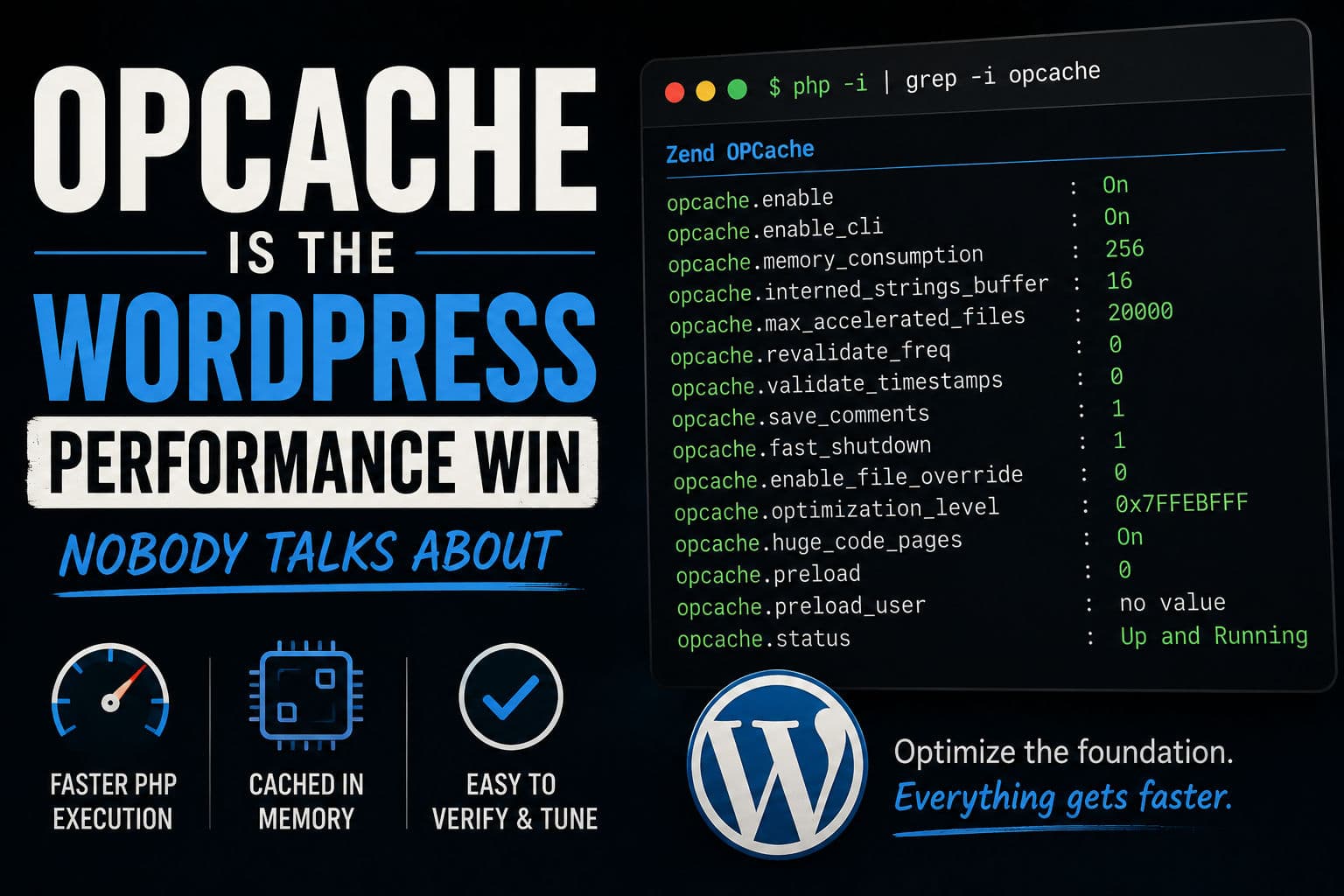
Every WordPress performance conversation I have eventually lands on page cache, image compression, or a CDN. Those all matter. But the single fastest win I’ve found on under-optimized sites sits at the PHP layer — before WordPress even boots. It’s OPcache, it’s been bundled with PHP since 5.5, and an embarrassing number of production sites either have it disabled or have it running with default settings from 2014.
Here’s what it actually does, how to confirm it’s working, and how I tune it on client sites.
1. What OPcache actually does
PHP is an interpreted language. Normally, every request triggers the same sequence: read the .php file from disk, tokenize it, parse it into an AST, compile it to opcodes, then execute those opcodes. On a WordPress page load, PHP touches hundreds of files — core, your active theme, every active plugin. That parse-and-compile cycle happens for all of them, on every single request.
OPcache short-circuits the expensive part. After the first compile, it stores the resulting opcodes in shared memory. Subsequent requests skip straight to execution. No disk reads for .php files, no parsing, no compilation. The files are already done.
On a busy site that’s getting cache misses (think: logged-in users, WooCommerce checkout, REST API calls), this is enormous. Page cache won’t help those requests. OPcache will.
2. Verify it’s running (don’t assume)
Managed hosts like Kinsta, WP Engine, and Cloudways enable OPcache by default. Shared hosts and VPS setups? Much less reliable. I’ve audited sites on cPanel-based shared hosting where OPcache was present but misconfigured, and the host’s dashboard said “enabled.” Trust but verify.
The quickest check is a one-line PHP file:
<?php phpinfo(); ?>
Drop that in your web root, visit it in a browser, and search the output for opcache. You want to see opcache.enable set to On and — critically — opcache.enable_cli as well if you’re running WP-CLI.
If it’s missing entirely, you’re on PHP without the extension loaded. On Ubuntu/Debian that’s a sudo apt install php-opcache and an uncomment in your php.ini. On managed hosts, contact support — they can toggle it without you touching server config.
3. Tuning for WordPress specifically
Default OPcache settings are conservative. They were reasonable in 2013. WordPress in 2026 with a typical plugin stack can easily have 300–500 PHP files in memory at once, and the defaults weren’t designed for that. Here are the settings I actually change:
      ; In php.ini or /etc/php/8.x/fpm/conf.d/10-opcache.ini
      opcache.enable=1
      opcache.enable_cli=1
      opcache.memory_consumption=256
      opcache.interned_strings_buffer=16
      opcache.max_accelerated_files=20000
      opcache.revalidate_freq=0
      opcache.validate_timestamps=0
      opcache.save_comments=1
What each one does:
opcache.memory_consumption— How much RAM to allocate for the opcode store. Default is 128 MB on modern PHP, but I’ve seen it as low as 64 MB on shared hosts. Bump it to 256 MB on any site running 20+ plugins.opcache.max_accelerated_files— Maximum number of files that can be cached. Default is often 10,000, which sounds like a lot until you count WordPress core (~1,000 files), WooCommerce (~1,500), and a handful of other plugins. Set this to at least 20,000.opcache.revalidate_freq— How often (in seconds) OPcache checks whether cached files have changed on disk. I set this to0on production, which means “never recheck unless I explicitly reset the cache.” More on this below.opcache.validate_timestamps— When set to0, OPcache never checks file modification times. Combined withrevalidate_freq=0, this gives maximum performance. You’re trading convenience for speed.opcache.interned_strings_buffer— Memory for interned strings (like repeated class and function names). Increasing this from the default 8 MB to 16 MB reduces string duplication in memory.
4. The cache invalidation gotcha
If you set validate_timestamps=0, you must have a deploy process that resets OPcache after any code change. Otherwise, PHP happily serves the old compiled version of your files even after you’ve pushed updates. I’ve seen this bite developers hard — a plugin update goes through, but WordPress is still running the previous version because OPcache is holding it.
The reset is simple from WP-CLI or a deploy hook:
- WP-CLI:
wp eval 'opcache_reset();' - PHP function call:
opcache_reset()oropcache_invalidate($path, true)for a single file
If you use a deployment tool like DeployHQ, Envoyer, or even a simple shell script, add the reset as a post-deploy step. If you’re doing manual updates through the WP dashboard, set revalidate_freq to something like 60 instead of 0 — you give up a little performance but sidestep the stale cache problem entirely.
5. What OPcache won’t fix
OPcache speeds up PHP execution time. It doesn’t help with:
- Database query time — If your site is slow because of 200+ uncached DB queries per page, OPcache shaves milliseconds off PHP parse time but the queries still kill you. That’s a job for object cache (Redis or Memcached).
- External HTTP requests — Plugins that make synchronous outbound requests on the critical path aren’t affected by PHP caching at all.
- Page cache misses on uncacheable content — OPcache helps here more than page cache does, but if your PHP logic itself is slow (nested loops, excessive metafield queries), you need to fix the logic.
- Frontend performance — TTFB improves. LCP, CLS, INP — those are separate problems.
Think of it this way: OPcache is the baseline. Every other performance layer — page cache, object cache, CDN — sits on top of it. But if the foundation is slow, everything above it pays the tax.
6. What I actually do on client sites
When I take on a WordPress speed optimization project, OPcache is one of the first things I check — before touching a plugin or a theme. The reason is simple: it’s a server-level fix that improves every single PHP request, and it costs nothing except a few lines in php.ini.
The pattern I see most often is a site on shared hosting or a cheap VPS where OPcache is technically enabled but with default memory_consumption=64 and max_accelerated_files=2000. The opcache status dashboard (I usually install opcache-gui temporarily) shows the cache is hitting its file limit and evicting entries constantly. The host’s marketing says “OPcache enabled.” The reality is a cache that’s thrashing under load.
Bumping the memory and file limits, then setting validate_timestamps=0 with a proper deploy reset, is often a 100–300 ms TTFB improvement without touching a single line of WordPress code. On a site already running tight on TTFB for Core Web Vitals, that can be the difference between green and orange.
One more thing: PHP 8.x added OPcache preloading (opcache.preload), which compiles a defined set of files into memory at server startup so they’re ready before any request hits. WordPress doesn’t ship a preload script out of the box, but some plugins (and some managed hosts) generate one. Worth asking your host if they support it — it’s the natural next step after tuning the basics.
If you’re not sure whether your server config is holding your site back, the WordPress development work I do always includes a server-layer audit. Or if you want to go deeper on the performance side specifically, book a call and we can look at your actual numbers.