

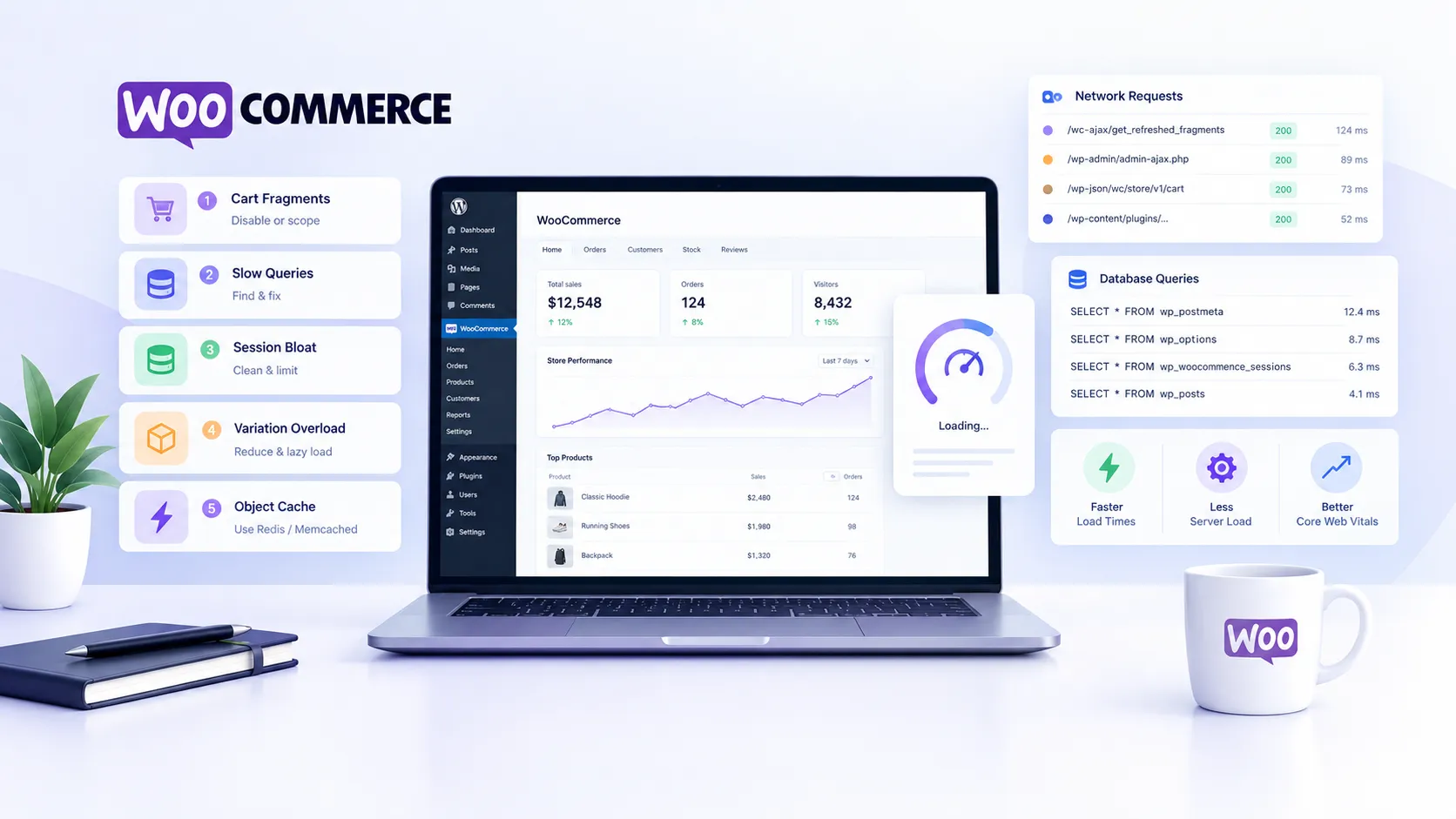
A WooCommerce store that feels slow despite “decent hosting” is one of the most common briefs I get. The owner has already tried a caching plugin, compressed some images, maybe even upgraded their server—and the store is still sluggish. After auditing dozens of WooCommerce builds, I’ve found the same culprits showing up again and again, and almost none of them are what the client guessed.
Here’s what I actually look for, in the order I look for it.
1. Cart fragments firing on every page
WooCommerce ships with cart-fragments.js—a script that fires an uncached AJAX request on every single page load to keep the header cart count fresh. On a busy store that means every visitor, including guests who will never buy, is hitting your server with a /?wc-ajax=get_refreshed_fragments request before the page even finishes rendering.
The quick fix everyone knows: disable it with a snippet or a plugin like Disable Cart Fragments. But the subtler fix—which I prefer—is to only enqueue the script on the cart and checkout pages. That way guest-heavy traffic (blog readers, SEO landing pages) isn’t punished, and logged-in customers still get the live count where it matters.
      add_action( 'wp_enqueue_scripts', function() {
          if ( ! is_cart() && ! is_checkout() ) {
              wp_dequeue_script( 'wc-cart-fragments' );
          }
      }, 99 );
Drop that in your theme’s functions.php or a small mu-plugin. It’s surgical and reversible, unlike a blanket disable.
2. Unoptimized database queries from plugins
Caching hides slow queries; it doesn’t fix them. When the cache misses—after a flush, after a deploy, or on pages that aren’t cached at all like checkout—those queries hit the database raw.
Install Query Monitor and load your slowest pages while logged in as an admin. Look for:
- Queries taking over 50 ms individually
- The same query running 10, 20, 50+ times per page load (the N+1 problem)
- Queries doing full table scans on
wp_postmetaorwp_options
The offenders are almost always third-party plugins, not WooCommerce core. Review apps, loyalty point plugins, and custom product field plugins are the worst I’ve seen. Once you identify the culprit, the fix is either adding a missing index (if it’s your own code) or replacing the plugin with something leaner.
3. WooCommerce session table bloat
WooCommerce stores session data in wp_woocommerce_sessions. On stores that get any meaningful traffic, this table grows to millions of rows. I’ve seen it hit 2 GB on a store doing modest volume—because the default cleanup job only runs once a day and can’t keep up with guest traffic.
Check the table size in phpMyAdmin or via WP-CLI:
wp db query "SELECT ROUND(data_length / 1024 / 1024, 2) AS size_mb FROM information_schema.tables WHERE table_name = 'wp_woocommerce_sessions';"
If it’s over a few hundred MB, you have a problem. The standard fix is to make sure WooCommerce’s scheduled action wc_cleanup_sessions is actually running (check with Action Scheduler in WooCommerce ’ Status ’ Scheduled Actions). If it’s running fine but the table is still huge, shorten the session expiry window— the default is 48 hours, which is generous. Most stores do fine at 6–12 hours for guest sessions.
4. Product variation overload
WooCommerce loads all variation data as a JSON blob into the page when a variable product is viewed. A product with 50 attributes × 10 values can easily generate a blob over 500 KB. That’s before gzip. On a mobile connection on a slow 4G signal, that alone tanks your LCP.
The solutions, in order of preference:
- Reduce variations at the product level. This is a merchant conversation, not a dev one. If a product has 200 variations and 180 of them are out of stock, archive them.
- Enable the “Ajax variation threshold” filter. WooCommerce has a filter (
woocommerce_ajax_variation_threshold) that switches to AJAX-loaded variation data above a certain count. The default threshold is 30; set it lower if you have complex products. - Use a dedicated variation plugin that lazy-loads variation data on attribute selection rather than upfront.
5. Missing object cache backend
WordPress has a built-in object cache API. Out of the box, it’s an in-memory cache that lives only for the duration of a single request—meaning every page load starts cold. WooCommerce is a heavy user of the object cache (product data, term counts, transients), so without a persistent backend, you’re rebuilding the same data on every request.
If your host supports Redis or Memcached, install the corresponding drop-in. On hosts that don’t (shared hosting, entry-level managed WordPress plans), this is usually the single biggest argument for moving to better infrastructure. The performance delta between a WooCommerce store with and without Redis is not subtle— I’ve seen TTFB drop from 800 ms to under 150 ms just from enabling the object cache on a store that was otherwise well-tuned.
What I’d actually prioritize on a client store
When I take on a WordPress speed optimization engagement for a WooCommerce store, I don’t fix everything at once. I fix things in order of measurable impact, and I instrument before and after each change.
The honest answer about priority is this: object cache first, cart fragments second.Those two changes are low-risk, high-reward, and they compound. Enabling Redis brings TTFB down for every page. Scoping cart fragments reduces the request waterfall for anonymous traffic. Together they usually get a store from “bad” to “acceptable” without touching a single plugin or product.
Session bloat is the silent one most devs skip. It doesn’t show up in PageSpeed Insights—it shows up as mysterious slowdowns under load, or after a cache flush when your database suddenly has to work through a 1.5 GB sessions table to answer every query that touches user state. I’ve had clients paying for expensive autoscaling infrastructure because of this exact problem. A one-time cleanup and a shorter expiry window fixed it.
Variation overload is the one that requires the most client buy-in. You can apply the AJAX threshold filter yourself, but the real fix is a product catalog conversation. Clients often don’t realize that 400-variation products are a development cost, not just a UX annoyance.
If your store is still dragging after working through this list, it’s probably time for a proper audit rather than more guesswork. I cover the full scope of what that looks like through my WordPress development work—or if you want to start with a focused performance review, book a call and we’ll dig into your specific setup.